Reviewing and applying AI suggestions
On the AI suggestion screen, you review each field of an AI-created suggestion, edit it if needed, and apply only the fields you select to the product in Shopify. Nothing is applied unless you select it. Applied content is saved to product metafields (extra information fields you can attach to a product; see the glossary).
Before you begin
- You clicked the Optimize with AI button on a product's diagnosis (Viewing a product's diagnosis).
- You have AI generations left for today.
Wait for the suggestion
After you click Optimize with AI, AI is creating a suggestion appears. This usually takes 10–30 seconds.

If it isn't finished after 3 minutes, the message changes to This is taking a while. Please reopen this screen later. This doesn't necessarily mean it failed. The suggestion may still be in progress. Wait a little, then click Optimize with AI on the product's diagnosis to return to this screen. However, if you've reached today's limit, the Optimize with AI button can't be clicked, so you can't return this way.
You'll also see this message if you open the address of a suggestion screen more than 24 hours after the suggestion was created (see Suggestions expire after 24 hours).
Reading the screen
A notice at the top of the screen always explains that the suggestion is based only on the current product information, and that fields that can't be confirmed are excluded from applying.
The Apply to product metafields section lists the following 10 fields in this order.
AI summary, Target customer, Use cases, Usage scenes, Key features, Materials, Specifications, Comparison points, Gift occasions, Cautions
AI summary isn't one of the score items. Applying it doesn't change the score.
Each field has three columns.
| Column | Contents |
|---|---|
| Field to apply | The field name and a checkbox to choose whether to apply it |
| Current value | The value currently saved on the product. Not set if there is none |
| AI suggestion | The value AI created. You can edit it within the character limits |
Unknown and AI estimate
A field may have one of the following badges.
| Badge | Meaning | Can it be applied? |
|---|---|---|
| Unknown | The field couldn't be confirmed from the product information. Could not be confirmed from the product information is shown | No (the checkbox can't be selected) |
| AI estimate | AI inferred the value from the product information | Yes, but it starts unchecked |
| None | The value was created from what's written in the product information | Yes, and it starts checked |
The screenshots on this page are examples. The numbers, products, and suggestion content shown depend on your store.
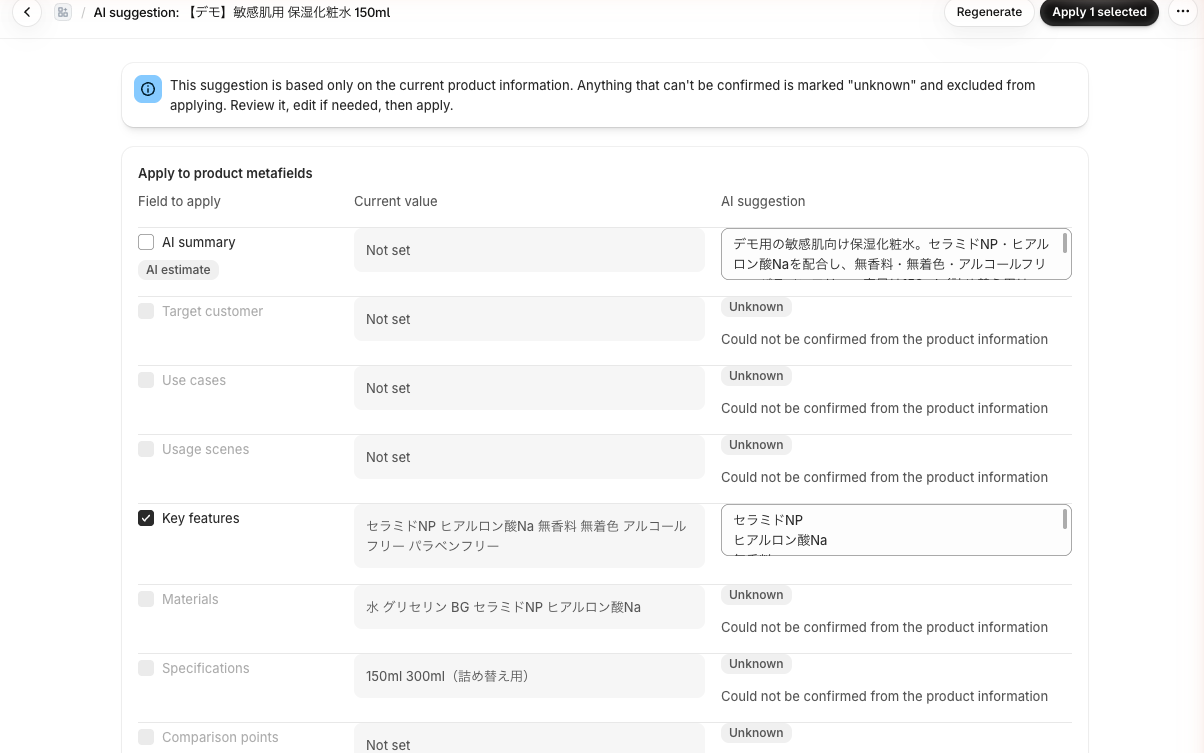
AI estimate appears only on five fields: Target customer, Use cases, Usage scenes, Gift occasions, and AI summary. Because these are inferences, they may not match the facts. Check the content, and select the checkbox only if you've confirmed it's correct.
Fields such as Materials, Specifications, Cautions, and Comparison points get a value only when matching content is found in the product information. If nothing is found, the field is marked Unknown. AI never fills these in by guessing.
To reduce Unknown fields, add details such as materials and size to the product description, then create the suggestion again. For how this works, see How AI suggestions are made and what to watch for.
Steps
- For each field, compare the Current value with the AI suggestion.
- If anything is wrong, edit the AI suggestion field.
- Select the checkbox for each field you want to apply. Clear the checkbox for fields you don't want to apply.
- To also append to the product description, select Product description under Apply to product information (optional) (see the next section).
- Click the apply button, which reads something like Apply 3 selected. The number is how many fields you selected.
If no fields are selected, the apply button can't be clicked.
There's a limit to how much you can enter.
- AI summary: up to 500 characters
- Other fields: up to 10 lines, with up to 100 characters per line
If you leave a checked field empty, it can't be applied: a red message reading Could not apply the changes. Check the values and try again. appears with Please review what you're applying. inside it.
Your edits and checkbox selections aren't saved. If you reopen (reload) this screen before applying, the fields go back to the AI's suggested values.
To leave without applying, click the Cancel button. You return to the product's diagnosis.
Append to the product description (optional)
Under Apply to product information (optional), you can append the content of the selected fields to the end of the product description as a Product information block. Your existing description isn't changed. Content is appended only if you select this option.
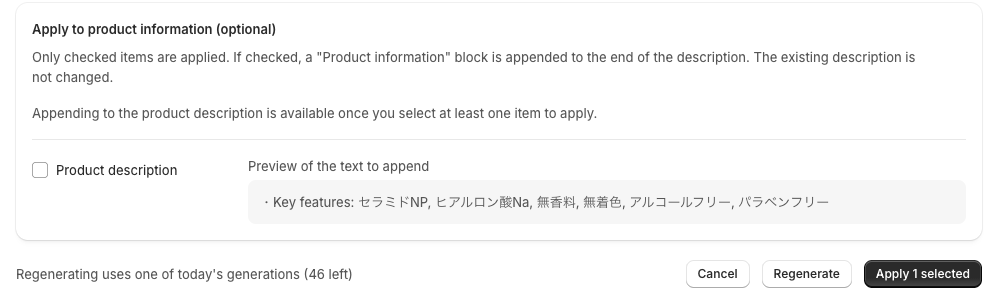
If a Product information block was appended before, it's replaced with the new content rather than added again. The block heading follows the product's language: for English products it's Product information, and for Japanese products it's the Japanese equivalent.
-
Under Apply to product metafields, select at least one field.
-
Under Apply to product information (optional), select Product description.
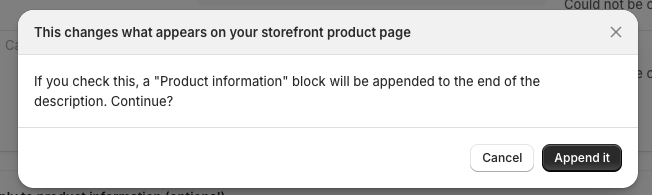
A confirmation titled This changes what appears on your storefront product page appears.
-
To go ahead, click Append it. To stop, click Cancel.
Preview of the text to append shows what will be appended, using only the content of the fields you selected. Appending changes the product description shown on your storefront product page.
Field names in the preview (such as Target customer) are shown in the app's display language. The field names and heading actually appended to the description follow the language of the product title and description (Japanese or English). As a result, the language of the field names in the preview may differ from what's actually appended.
If you can't select Product description
Appending to the product description is available only when at least one field is selected under Apply to product metafields. The screen also shows Appending to the product description is available once you select at least one item to apply. If you clear all field selections, Product description is cleared automatically too.
Check the result
When applying succeeds, a message such as Applied 3 items to Shopify appears, followed by Saved to the product metafields. The score has been recalculated. The score is recalculated right away.

Choose what to do next with one of two buttons.
- Back to product diagnosis: return to this product's diagnosis and check the new score.
- See another product to improve: return to the home screen and choose the next product.
Check and edit in Shopify admin
Applied content is saved in the metafields section of the product page in Shopify admin. In Shopify admin, the fields appear under the names below.
| Field name in the app | Name in Shopify admin |
|---|---|
| AI summary | AI summary |
| Target customer | Target customers |
| Use cases | Use cases |
| Usage scenes | Usage scenes |
| Key features | Key features |
| Materials | Materials |
| Specifications | Specifications |
| Comparison points | Comparison points |
| Gift occasions | Gift occasions |
| Cautions | Cautions |
-
On the product's diagnosis, click Open product in Shopify.
The product page in Shopify admin opens in a new tab.
-
In the metafields section, find the fields by the names in the table above and check the applied values. You can edit the values directly there.
If you edit a value in Shopify admin and then apply the same suggestion again, the checked fields are overwritten with the values in the app. To keep a value you edited in Shopify admin, clear that field's checkbox before applying.
The last optimized date and time is also saved as a metafield named Last optimized. This value is display-only and can't be edited.
If only part was applied
If Some items were not applied appears, the product metafields have already been applied. Only appending to the product description didn't go through. You don't need to apply everything again.
The reason is shown as follows.
| Message | What to do |
|---|---|
| The product had changed, so the description was not applied. Please reload and try again. | The product was updated (for example, in Shopify admin) after the suggestion was created. Reloading doesn't let you append with the same suggestion. To also append to the description, create a new suggestion with Regenerate and then apply it (this uses one generation) |
| The title/description could not be applied due to an error. Please check the content and try again. | Check the content and try appending again |
| We couldn't confirm whether the title/description were applied. Please reload to check the current content. | Reload and check whether the product description has changed |
| There was nothing to append, so the description was not applied. | There was no content that could be appended |
If Could not apply the changes. Check the values and try again. appears, in most cases nothing was applied, including the product metafields. However, the same message also appears when applying finished but only the score recalculation afterward failed, in which case the changes were applied. Reload the screen, check the Current value, and click the apply button again only if needed.
Create the suggestion again
Click the Regenerate button to create the suggestion again. Regenerating also uses one of today's AI generations. The bottom of the screen shows the remaining count, for example Regenerating uses one of today's generations (47 left).
If you've reached today's limit, You've reached today's AI generation limit (50) appears. The limit of 50 is a default and may change. Try again after 0:00 Japan time.
If this screen is open, you can still review and apply a suggestion that's already been created after you reach the limit. However, once you reach the limit, the Optimize with AI button on the product's diagnosis can't be clicked. If you close this screen, you can't get back to the suggestion from the product's diagnosis until after 0:00 Japan time.
For more about counts and limits, see AI generation counts and limits.
Suggestions expire after 24 hours
You can review and apply a suggestion for 24 hours after it's created. Within 24 hours, even if you close the screen, clicking Optimize with AI on the product's diagnosis shows the same suggestion. No new suggestion is created and no generation is used (the button can't be clicked if you've reached today's limit). Even a suggestion you've already applied can be reopened and applied again within 24 hours.
When you apply again, keep the following in mind.
- When you reopen the suggestion, each field's content and checkbox go back to the AI's suggested values. Your earlier edits aren't kept.
- Checked fields are overwritten with the values on screen. This includes values you edited in Shopify admin.
What you see after 24 hours depends on the situation.
| Situation | What you see |
|---|---|
| You tried to apply a suggestion older than 24 hours | Could not apply the changes. Check the values and try again. with The suggestion was not found, or it has expired. inside it |
| You opened this screen when there was no suggestion from the last 24 hours | No suggestion to show |
| You directly opened the address (URL) of a suggestion screen older than 24 hours | AI is creating a suggestion stays on screen, then changes to This is taking a while. Please reopen this screen later. after 3 minutes |
In every case, click Optimize with AI on the product's diagnosis to create a new suggestion. In the third case, reopening the screen doesn't change the in-progress message. The remaining time isn't shown on screen.
Troubleshooting
Every field is Unknown
We couldn't create a suggestion from this product's information appears, and the apply button and the Product description checkbox can't be used. Regenerate is still available. Add details such as materials, size, or intended use to the product description, then click Regenerate.
Creating the suggestion failed
An error appears depending on the reason for the failure. Failed attempts aren't counted toward today's generations.
| Message | What to do |
|---|---|
| Could not reach the AI service. Please try again shortly. | Wait a while, then click Regenerate |
| The AI response was too long to use. Please try regenerating. | Click Regenerate |
| Could not read the AI response. Please try regenerating. | Click Regenerate |
| The AI service usage limit has been reached. Please try again shortly. | Wait a while, then click Regenerate |
| This product could not be generated with AI. | Suggestions can't be created for some product information |
| There's a problem with the AI service connection. Please contact your administrator. | Contact support |
If you see The AI generation limit for all stores has been reached for today. Please try again tomorrow. or AI generation is currently turned off. Please try again later., try again later, or the next day. The difference between the two is explained in AI generation counts and limits.
For other errors, see Troubleshooting.