Getting started
This page walks you through everything from installing the app to applying your first AI suggestion to a product. The steps follow the same order as the three steps in Getting started on the home screen.
Before you begin
- You can open the app from Shopify admin.
- Your store has at least one product.
Steps
1. Wait for the first scan to finish
-
Open the app from Shopify admin.
A product scan (reading your products and calculating their scores) starts automatically. You don't need to do anything else.
While the scan runs, a message such as Scanning products (120 / 480) appears at the top of the home screen. The catalog score (the average score across your store) and the product count are provisional until the scan finishes. The screen also shows The initial scan after installation is in progress. The catalog score and product count are provisional until it finishes.
The app doesn't show an estimated time. Only the number of processed products goes up. If the total isn't known yet, only the count appears, as in Scanning products (120 processed).
If no scan is running and no product has a score yet, the screen shows only Products will appear once scanning finishes.
When the scan finishes, 1. Finish scanning your products in Getting started changes to Done.
2. Optimize a low-scoring product with AI
-
On the home screen, look at Products to improve first.
Up to five products are listed, lowest score first.
-
Click the Optimize button in the row of the product you want to improve.
The product's diagnosis appears.
-
Check the missing items (the ones marked with an ×).
-
Click the Optimize with AI button at the top of the screen.
AI is creating a suggestion appears. This usually takes 10–30 seconds.
Clicking Optimize with AI uses one of today's AI generations. The daily limit is 50 (default). The limit may change, so check the current value in the app.
To learn how to read the diagnosis, see Viewing a product's diagnosis.
3. Review the suggestion and apply it to Shopify
-
For each field, compare the Current value with the AI suggestion.
-
If something is wrong, edit the AI suggestion field directly.
-
Select the checkbox for each field you want to apply.
Fields marked AI estimate start unchecked.
-
Click the apply button, which reads something like Apply 3 selected.
When Applied 3 items to Shopify appears, you're done.
There's a limit to how much you can enter. AI summary allows up to 500 characters. Other fields allow up to 10 lines, with up to 100 characters per line. If you leave a checked field empty, it can't be applied: a red message reading Could not apply the changes. Check the values and try again. appears with Please review what you're applying. inside it.
Fields marked Unknown couldn't be confirmed from your product information, so they can't be applied. For what each field means and how to append to the product description, see Reviewing and applying AI suggestions.
Check the result
- After you apply, the product's score is recalculated right away.
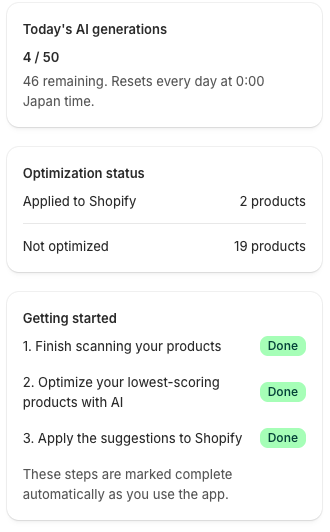
- In Getting started on the home screen, 2. Optimize your lowest-scoring products with AI and 3. Apply the suggestions to Shopify change to Done. These steps are completed automatically as you use the app. You don't need to check anything off yourself.
- The number of products under Applied to Shopify in Optimization status goes up.
When all three steps are done, the Getting started section looks like this.
Improve other products the same way. To find products, see Finding and filtering products.
About the welcome email
The welcome email is sent the first time you open the app. It contains a link to open the app, a link to the user guide, and a link for contacting support. Because it's sent the moment you first open the app, the Receive a welcome email setting may not stop this email. For more about settings, see Settings.
Troubleshooting
- If the scan is taking a long time, check whether the number of processed products is still going up. For details, see Troubleshooting.
- If you can't click the Optimize with AI button, you may have reached today's AI generation limit. The count resets every day at 0:00 Japan time. For details, see AI generation counts and limits.
- If every field in the suggestion is Unknown, add details such as materials, size, or intended use to the product description, then create the suggestion again.