Reading the home screen
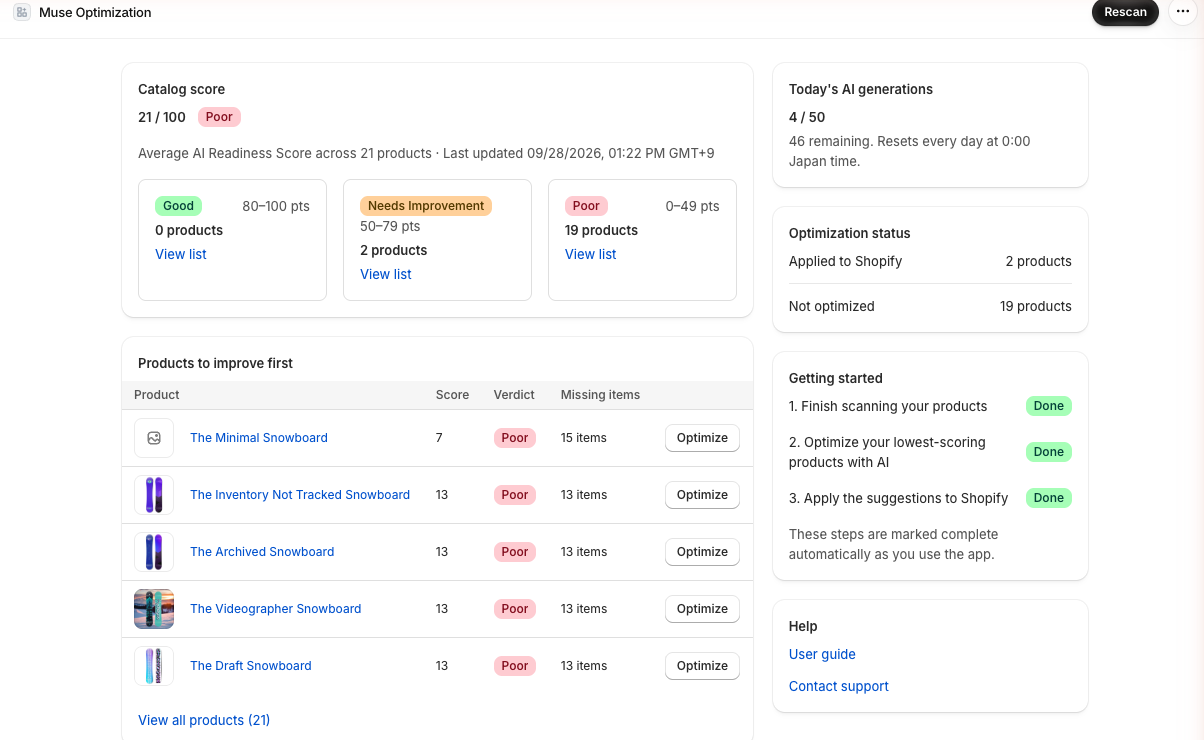
The home screen shows the score for your whole store, the products to improve first, today's AI generation count, and how many products you've applied suggestions to. It's the first screen you see when you open the app, and its heading is Smart Catalog for UCP.
Before you begin
- You can open the app from Shopify admin.
Screen layout
| Section | What it shows |
|---|---|
| Catalog score | The average score across your store (out of 100) and its verdict |
| Products to improve first | Your lowest-scoring products (up to five) |
| Today's AI generations | How many you've used today, the daily limit, and how many remain |
| Optimization status | The number of products you've applied suggestions to, and the number you haven't |
| Getting started | The three first steps and whether each is done |
| Help | User guide and Contact support buttons |
The home screen looks like this.
Check the catalog score
-
On the home screen, look at the Catalog score section.
The average score of all products in your store is shown out of 100.
If a scan is running and no product has a score yet, a dash (—) appears instead. Below the score, you'll see the number of products included and when it was last updated. The catalog score also includes draft and archived products. For details, see How the AI Readiness Score works.
The number of products in each verdict is also shown. The verdict thresholds are below. These are defaults and may change.
| Verdict | Score (default) |
|---|---|
| Good | 80 or higher |
| Needs Improvement | 50 or higher, below 80 |
| Poor | Below 50 |
View the products in a verdict
-
In the box for the verdict you want, click View list below the product count.
The product list opens, filtered to that verdict.
Open a product to improve first
Products to improve first lists up to five products, lowest score first. Each row shows Product, Score, Verdict, and Missing items. Missing items is the number of items judged to be missing for that product.
-
Click the Optimize button in the row of the product you want to improve.
The product's diagnosis appears.
To see all your products, do the following.
-
Click View all products (124) below the list.
The list of all products opens.
Check today's AI generation count
-
On the home screen, look at the Today's AI generations section.
The number used today and the daily limit are shown, for example 3 / 50. Below that, the remaining count appears, for example 47 remaining. Resets every day at 0:00 Japan time.
The daily limit is 50 (default). The limit may change, so check the current value in the app.
This counts the number of AI suggestions you've created. Attempts that fail are not counted.
Check the optimization status
-
On the home screen, look at the Optimization status section.
Two numbers are shown.
| Label | Meaning |
|---|---|
| Applied to Shopify | The total number of products you've applied a suggestion to at least once |
| Not optimized | The number of products included, minus the number already applied |
Today's AI generations and Applied to Shopify count different things.
- Today's AI generations: the number of times you created a suggestion today. It goes back to 0 every day at 0:00 Japan time.
- Applied to Shopify: the number of products you've ever applied a suggestion to. It doesn't go down from one day to the next.
Even if you later delete a value you applied, the Applied to Shopify number doesn't go down, because it counts every product that has ever had a suggestion applied.
Check your progress in Getting started
-
On the home screen, look at the Getting started section.
The three steps are shown, each marked Done or Not done.
| Step | When it changes to Done |
|---|---|
| 1. Finish scanning your products | When a scan finishes. If you start a rescan, it goes back to Not done until the rescan finishes |
| 2. Optimize your lowest-scoring products with AI | Once you've created an AI suggestion |
| 3. Apply the suggestions to Shopify | Once you've applied a suggestion |
The steps are completed automatically as you use the app. There's nothing to check off yourself. Once steps 2 and 3 are Done, they don't go back to Not done, even if you later delete a value you applied.
For how to work through the steps, see Getting started.
Open help
- In the Help section, click User guide or Contact support.
User guide opens the guide in the display language you saved in Settings (Japanese or English).
Sometimes only one of the two buttons appears. If neither is available, the Help section isn't shown.
Check scan progress
While a scan is running, a blue message appears at the top of the screen.
- When the total is known: Scanning products (120 / 480)
- When the total isn't known yet: Scanning products (120 processed)
Even when no total is shown, the scan is still running. To check whether it has stopped, see whether the processed count is going up. No estimated time is shown.
While a scan is running, the catalog score and product count are provisional.
Rescan
Added, updated, and deleted products are picked up automatically. Rescan only when the scores don't match your actual products.
-
Click the Rescan button at the top of the screen.
Rescan started appears, and the home screen refreshes.
If you can't rescan
There are two reasons you may not be able to rescan.
| What you see | Reason | What to do |
|---|---|---|
| The button can't be clicked, or A scan is already in progress. | A scan is running | Wait for the scan to finish |
| A scan finished within the last hour. Please wait a bit before trying again. | Less than an hour has passed since the previous scan finished | Try again once an hour has passed since the previous scan finished |
The screen doesn't show how many minutes are left. You can check when the last scan finished under Last scan in Settings.
Troubleshooting
- If you see Could not load the home screen, use the button shown to load the screen again.
- If the list shows fewer products than expected or scores keep changing, the first scan may still be running. Wait until the scan message disappears.
- For other issues, see Troubleshooting.