Viewing a product's diagnosis
A product's diagnosis shows its score and, item by item, whether each piece of information is registered or missing. This is also where you start creating an AI suggestion.
Before you begin
- You can open the home screen or the product list.
Open a diagnosis
-
In Products to improve first on the home screen, or in the product list, click the Optimize button in a product's row.
The product's diagnosis appears.
The product name and its verdict (Good, Needs Improvement, or Poor) appear at the top of the screen. To go back to the product list, click the back link at the top of the screen.
Click Open product in Shopify to open the product page in Shopify admin in a new tab.
Read the score
The AI Readiness Score section shows the score out of 100 and the verdict. Below the score, you'll see how many of the 18 items are registered, along with a note that Optimize with AI can draft the missing ones.
The top of the diagnosis screen looks like this.

However, AI suggestions can fill in only the following nine items. The six items in Basic information, plus Color, Compatibility, and Shipping information, are not covered by AI suggestions.
Target customer, Use cases, Usage scenes, Key features, Materials, Specifications, Comparison points, Gift occasions, Cautions
The line below, such as Last diagnosed 09/28/2026, 10:00 AM GMT+9 (re-diagnosed automatically on update), shows when the product was last updated in Shopify. It is not when the score was calculated.
The score is recalculated every time you open this screen. It's also recalculated automatically when you update the product. You don't need to rescan.
Read the results for each item
Under Diagnosis, 18 items are listed in three groups.
| Group | Points | Items |
|---|---|---|
| Basic information | 40 | Product title, Product description, Product category, Vendor, Product images, Price & variants |
| Product attributes | 50 | Target customer, Use cases, Materials, Specifications, Key features, Usage scenes, Color, Compatibility |
| Purchase context | 10 | Gift occasions, Comparison points, Cautions, Shipping information |
To the right of each group heading, the number of registered items in that group appears, for example 4 / 6 registered.
Each item is shown in one of three states.
| State | What you see | Points |
|---|---|---|
| Structured (stored in a dedicated field) | A check icon and Registered as structured data | Full points |
| Detected in the description | A check icon, Detected in the description (structuring it adds +5 pts), and +5 pts | Half the points (rounded down) |
| Not registered | An × icon, Not registered (worth 10 pts), and −10 pts | 0 |
Here's one group of item cards.
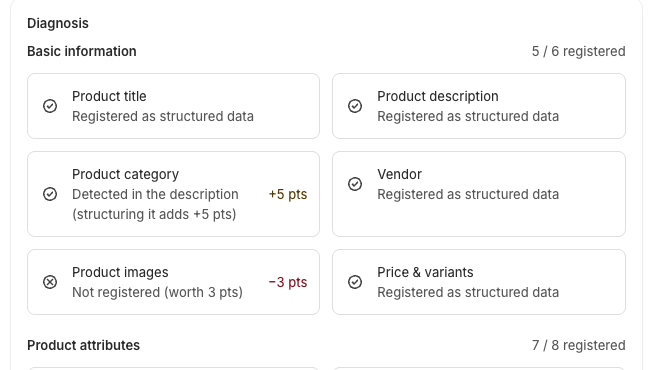
What puts an item in the second state (detected in the description) depends on the group. For items in Product attributes and Purchase context, it happens when a keyword for that item is found in the product title or description. The on-screen text seems to refer only to the description, but the product title is searched too. Key features also reaches this state when the description contains a bulleted list. For items in Basic information, it happens when the product title or description is short, when a product type is set but a product category isn't, or when the product has one or two images. For the detailed conditions, see How the AI Readiness Score works.
Values such as +5 pts and −10 pts show how many points the item is short of full points.
For the points and conditions for each item, see How the AI Readiness Score works.
When many items are registered but the score is low
The registered item count below the score also includes items detected in the description (the second state in the table). These items earn only half their points. That's why a product can have a low score even when many items are registered.
For example, a 10-point item detected in the product title or description earns 5 points. A 3-point item earns 1 point. For items that show a value like +5 pts and are covered by AI suggestions, applying a suggestion saves the value to product metafields (extra information fields you can attach to a product), which brings the item to full points.
Compatibility and Shipping information are exceptions. If they're mentioned in the product title or description, that alone earns full points. When found in the title or description, these two items also show Registered as structured data.
Product information and AI optimization sections
The right side of the screen has the following sections.
| Section | Contents |
|---|---|
| Product information | Product images, Status, Product type, Vendor, Price, and Variants |
| AI optimization | The Last optimized date and time (Not yet optimized if none) and Generations left today |
| Saved AI optimization data | If you've applied a suggestion, when it was last applied |
Generations left today shows the remaining count followed by the limit, for example 47 / 50.
Create an AI suggestion
-
Click the Optimize with AI button at the top of the screen.
The AI suggestion screen opens and creation starts.
Clicking the button uses one of today's AI generations. If creation can't start or fails, that attempt isn't counted.
To learn how to review and apply the suggestion, see Reviewing and applying AI suggestions.
When clicking doesn't create a new suggestion
In the following cases, clicking Optimize with AI doesn't create a new suggestion. Instead, the AI suggestion screen opens and shows the existing state. No generation is used.
- A suggestion is already being created for that product.
- A suggestion was created for that product within the last 24 hours (even if it's no longer being created).
If you've reached today's limit, the Optimize with AI button itself can't be clicked (see the next section).
To create a new suggestion, click the Regenerate button on the AI suggestion screen. Regenerate also uses one generation.
When you reach today's limit
Today's limit has been reached appears, and the Optimize with AI button can't be clicked. The explanation reads You've reached today's limit (50). It resets at 0:00 Japan time. Click the button again after 0:00 Japan time.
While the button can't be clicked, you can't go from this screen to the suggestion screen, even if a suggestion was created within the last 24 hours.
The daily limit is 50 (default). The limit may change, so check the current value in the app. For details, see AI generation counts and limits.
Troubleshooting
- If you see Product not found, the product may have been deleted, or the URL may be incorrect. Click Products in the app menu to open the product list, and select the product again.
- If you see Could not load the product, use the button shown to load the screen again.
- If an error appears when you click Optimize with AI, check the message shown at the bottom of the screen. For what each error means, see Troubleshooting.