Finding and filtering products
The product list shows your store's products with their scores and verdicts so you can find the ones to improve. You can search by product name, filter by verdict or status, and change the sort order.
Before you begin
- When you sort by score or filter by verdict, only products that have a score are listed. Until the first scan finishes, fewer products appear in these views. In the default sort order (Recently updated), products that haven't been scanned yet are also listed, as Not diagnosed.
Steps
Open the product list
-
On the home screen, click View all products (124). You can also click Products in the app menu.
The product list appears.
If you click View list below the count in a verdict box on the home screen, the list opens filtered to that verdict.
Read the list
Each row shows the following.
| Column | Contents |
|---|---|
| Product | The product name |
| Status | Active, Draft, or Archived |
| Product type | A dash (—) if not set |
| Vendor | A dash (—) if not set |
| Score | 0–100 |
| Verdict | Good, Needs Improvement, or Poor, or Not diagnosed for products without a score |
| Last optimized | When a suggestion was last applied. A dash (—) if one has never been applied |
Click the Optimize button on the right of a row to see that product's diagnosis.
The list shows 25 products per page. Use the pagination controls to move between pages.
Search by product name
-
In the Search by product name field, enter words from the product name.
Products that match the words are shown.
The search matches the beginning of words in the product name. For example, The Minimal Snowboard is found with Minimal, minim, or snow. Uppercase and lowercase are treated the same.
- If you enter several words separated by spaces, only products that match all of them are shown.
- Letters in the middle of a word (such as
boardforSnowboard) won't find the product. - Japanese product names are split into words automatically by Shopify. Depending on how a name is split, a word in the middle of the name may not find the product. For example,
本革ミニショルダーバッグis found with本革orミニ, but not withショルダーorバッグ. If you can't find a product, try a word from the beginning of the name.
If no products match, No products match your filters appears.
Keep your search to 100 characters or fewer. The field accepts 101 or more characters, but the list then can't be loaded and That combination of filters isn't supported. appears.
Filter by verdict
-
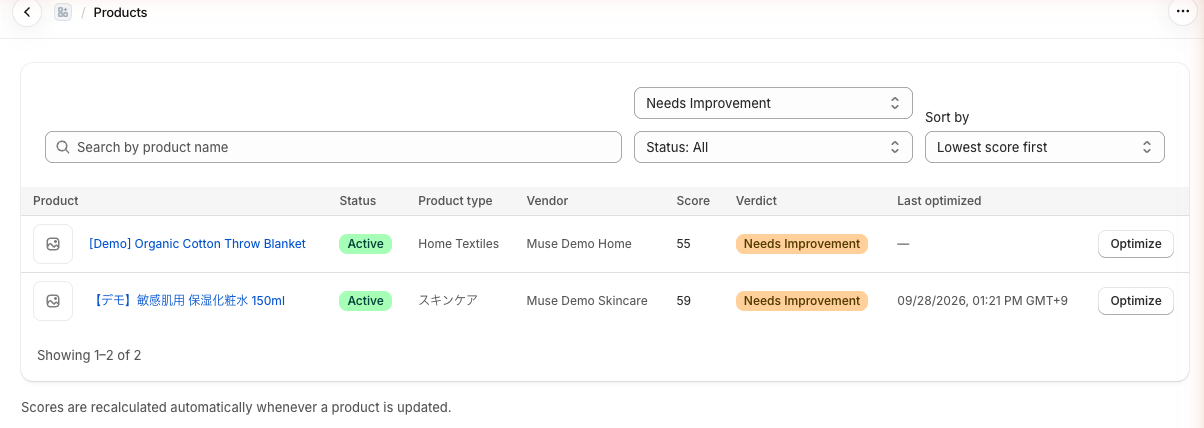
In the verdict menu, choose Good, Needs Improvement, or Poor. To show all verdicts again, choose Verdict: All.
Only products with the selected verdict are shown.
Here's the list filtered to one verdict.
Filter by status
-
In the status menu, choose Active, Draft, or Archived. To show all statuses again, choose Status: All.
Only products with the selected status are shown.
You can combine the status filter with a search or a verdict filter.
Sort the list
Choose from these five sort orders.
- Recently updated (the default)
- Lowest score first
- Highest score first
- Recently optimized
- Product name (A→Z)
Recently optimized shows only products you've applied a suggestion to at least once. Products that have never had a suggestion applied don't appear.
In this sort order, the total shown in the count is the number of all products that have a score (or, if you're filtering by verdict, the number of products with that verdict). Because the list only includes products with an applied suggestion, it can contain fewer products than the total.
When you open the list from View list on the home screen, it's sorted by Lowest score first from the start.
Changing the search, a filter, or the sort order takes you back to page 1.
Search and verdict filters can't be used together
You can filter by verdict only when the search field is empty and the list is sorted by Lowest score first, Highest score first, or Recently optimized. Otherwise, the verdict menu can't be used and this note appears:
You can't filter by verdict while searching by product name, or while sorting by "Recently updated" or "Product name (A→Z)".
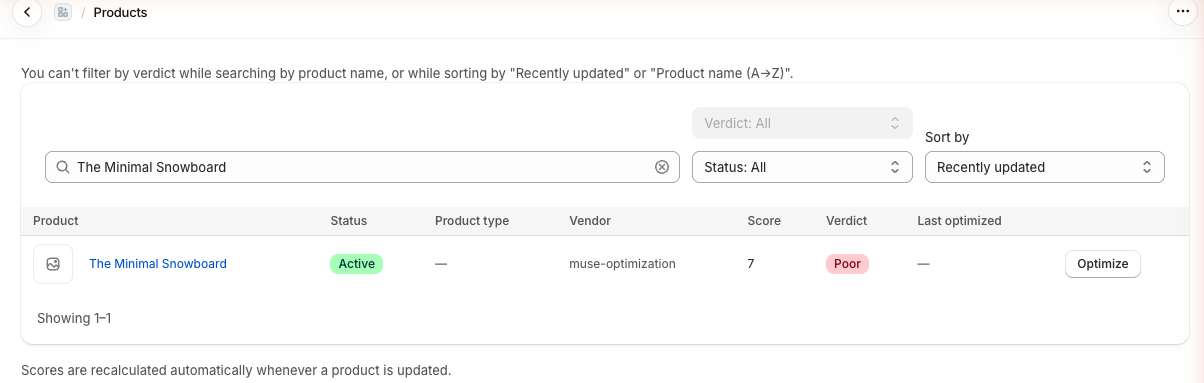
Because of this, the following actions change other settings automatically.
| When you | What changes automatically |
|---|---|
| Search by product name | The verdict filter goes back to Verdict: All. If the list was sorted by score, the sort order changes to Recently updated |
| Sort by Recently updated or Product name (A→Z) | The verdict filter goes back to Verdict: All |
| Sort by Lowest score first, Highest score first, or Recently optimized | Any search text you entered is cleared |
If a filter you set seems to have disappeared, check whether you did one of the actions in this table. To filter by verdict, clear the search field, choose a score-based sort order, and then choose a verdict.
Products marked Not diagnosed
Products that don't have a score yet show Not diagnosed under Verdict.
Not diagnosed products appear only when you search by product name, or when the list is sorted by Recently updated or Product name (A→Z). They don't appear when you filter by verdict or sort by score.
The product count
How the count is shown depends on your settings.
| Condition | Example |
|---|---|
| Sorted by score (Lowest score first, Highest score first, or Recently optimized) and status set to Status: All | Showing 1–25 of 124 (with total) |
| Anything else | Showing 1–25 (no total) |
When no total is shown, that's simply how the screen works. No products are missing.
With Recently optimized, the total is the number of all products that have a score (or, if you're filtering by verdict, the number of products with that verdict). It may not match the number of products actually listed (those with an applied suggestion).
Check the result
- Scores are recalculated automatically whenever a product is updated. appears below the list. When you update a product in Shopify, its score is recalculated automatically.
- If you entered search text and nothing matches, No products match your filters appears. Click the Clear search button to clear the search.
- If you haven't entered search text and there are no products to show, No products appears. The same message appears when a verdict or status filter leaves no products.
Troubleshooting
- If you see Could not load the product list, click the Retry button. If that doesn't help, contact support and include the error ID shown.
- If you see That combination of filters isn't supported., your search text may be longer than 100 characters. Shorten it.
- If you can't use the verdict menu, clear the search field and choose a score-based sort order.
- If only a few products appear, the first scan may still be running when you sort by score or filter by verdict. Check the scan status on the home screen, or sort by Recently updated.