Settings
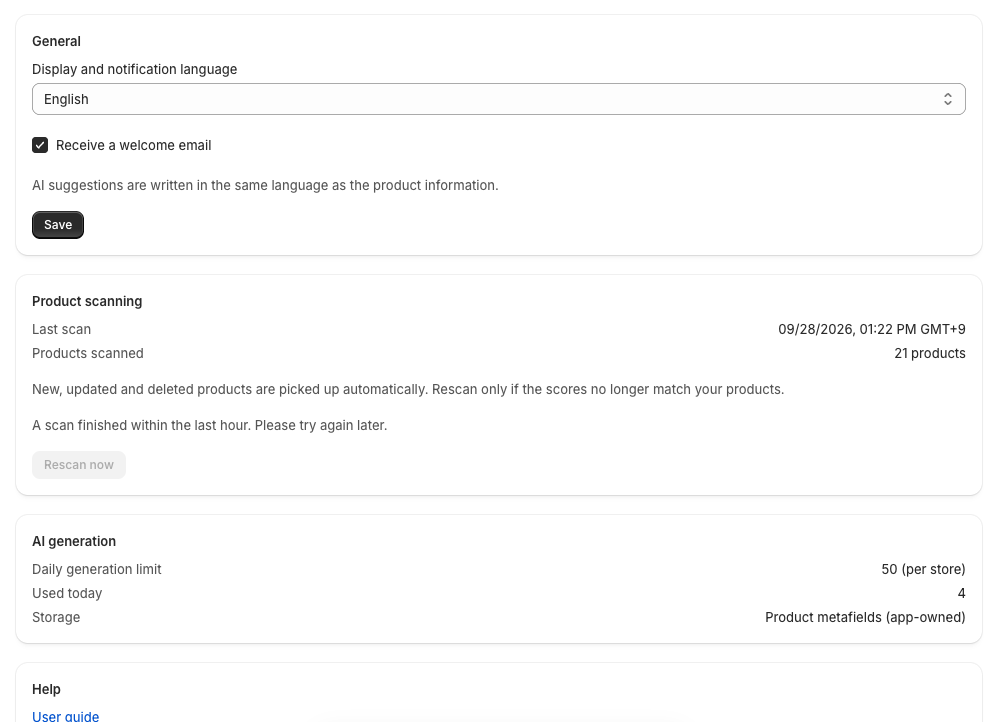
On the Settings screen, you change the display and notification language and check scan status and AI generation counts. You can also start a rescan from here.
Before you begin
- You can open the app from Shopify admin.
Change the display and notification language
-
Click Settings in the app menu.
-
Under Display and notification language, choose Japanese or English.
A save bar appears when you make a change.
-
Click Save in the save bar, or the Save button in the section.
When Saved appears, you're done.
Once saved, the display language switches on every screen right away, without reopening the app.
If saving fails, Could not save. Check your settings and try again. appears. Check your settings and click Save again.
What the language setting changes
| Item | Does it change? |
|---|---|
| The app's display language | Yes |
| The language of the guide opened by User guide | Yes |
| The language of AI suggestions | No |
The welcome email is also sent in this language, but only one is sent, when you first open the app. Changing the language later doesn't affect an email you've already received.
AI suggestions are created in the same language as the product title and description. The screen also shows AI suggestions are written in the same language as the product information. There's no option to choose the language of suggestions.
When you first open the app, the language is set to Japanese or English to match your Shopify admin language.
About the welcome email
The Settings screen has a Receive a welcome email checkbox. However, the welcome email is sent only once, when you first open the app, so in most cases changing this checkbox doesn't affect that email.
Check scan status
-
On the Settings screen, look at the Product scanning section.
The following is shown.
| Label | Contents |
|---|---|
| Last scan | When the last scan finished. Not yet run if no scan has finished yet, or while a scan is running |
| Products scanned | The number of products that have a score |
Rescan
Added, updated, and deleted products are picked up automatically. Rescan only when the scores don't match your actual products.
-
Click the Rescan now button.
Rescan started appears.
If you can't rescan
There are two reasons you may not be able to rescan.
| What you see | Reason | What to do |
|---|---|---|
| The button can't be clicked, and A scan finished within the last hour. Please try again later. appears | Less than an hour has passed since the previous scan finished | Try again once an hour has passed since the Last scan time |
| A scan is already in progress. appears after you click | A scan is running | Wait for the scan to finish |
The screen doesn't show how many minutes are left. Use the Last scan time to judge.
Check AI generation counts
-
On the Settings screen, look at the AI generation section.
The following is shown.
| Label | Contents |
|---|---|
| Daily generation limit | How many AI suggestions you can create per day, shown as, for example, 50 (per store) |
| Used today | How many you've already used today |
| Storage | Where applied content is saved. Shows Product metafields (app-owned) |
The daily limit is 50 (default). The count resets every day at 0:00 Japan time. The limit may change, so check the current value in the app. For details, see AI generation counts and limits.
Open help
-
In the Help section, click User guide or Contact support.
User guide opens the guide in the language saved under Display and notification language.
If neither button is available, the Help section isn't shown. For how to contact us, see Contacting support.
Troubleshooting
- If you see Could not load settings, the scan status, AI generation, and help sections couldn't be loaded. Click the Retry button shown.
- If the language doesn't change, check whether Saved appeared.
- For other issues, see Troubleshooting.